

Using Autopatch’s ring system for your own benefit
Here is one of those consultant secrets: when we make changes, we do not YOLO-roll out an app, policy, or script to every device at once. We also do not want a static Entra group manually maintained by one person, where half the devices are stale anyway. When Autopatch launched, I quickly noticed its ring system. You can create multiple rings and let Autopatch distribute devices dynamically based on percentages you define as IT admin.
Did you know Autopatch creates those defined rings as static Entra groups? It then handles dynamic assignment when devices are registered.
But let’s back up a bit. What is Autopatch in the first place?
What is Windows Autopatch
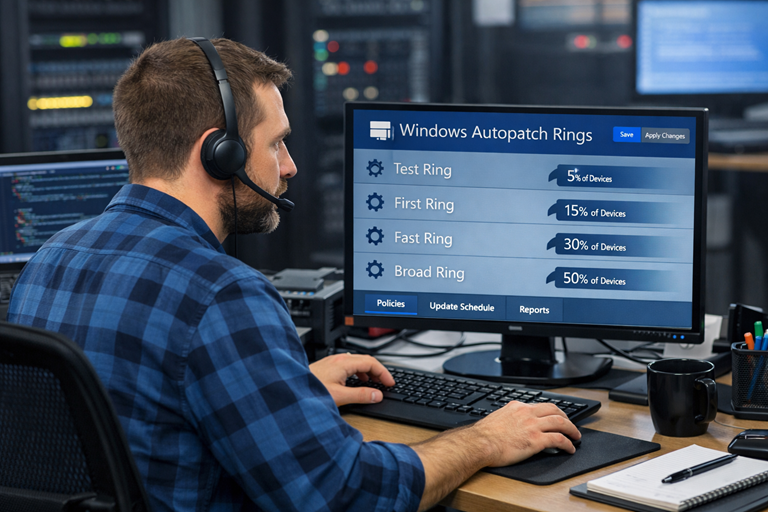
Windows Autopatch is Microsoft’s managed update service. It takes most patching overhead off IT teams. It is cloud-based and automates updates for Windows and other Microsoft software such as Edge, Microsoft Office, and anything supported by the Windows Update engine.
When Autopatch is enabled in your tenant and you create new “Autopatch groups,” it automatically creates the relevant policies for Windows patching, feature updates, Edge, Office, and more. That saves IT admins from a manual click-a-thon.
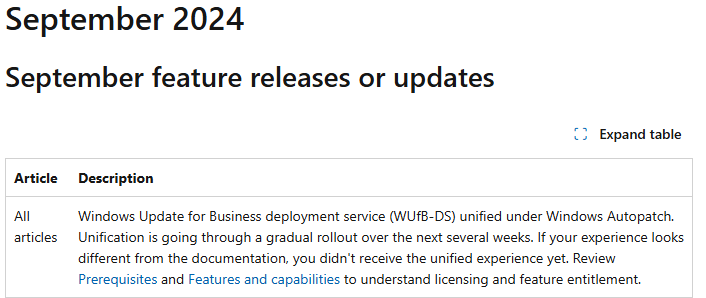
I still meet a lot of customers who are skeptical of Autopatch. What many people miss is that WUfB (Windows Update for Business) was merged into Autopatch a while back. If you spend a lot of time in the Intune admin console, you have probably noticed things moved around. That is mostly due to Autopatch maturing over the past few years.
Getting started with Autopatch
To start configuring Autopatch, you need an Entra group for device onboarding. This can be static or dynamic. Also be sure to review the pre-reqs for Autopatch in the documentation.
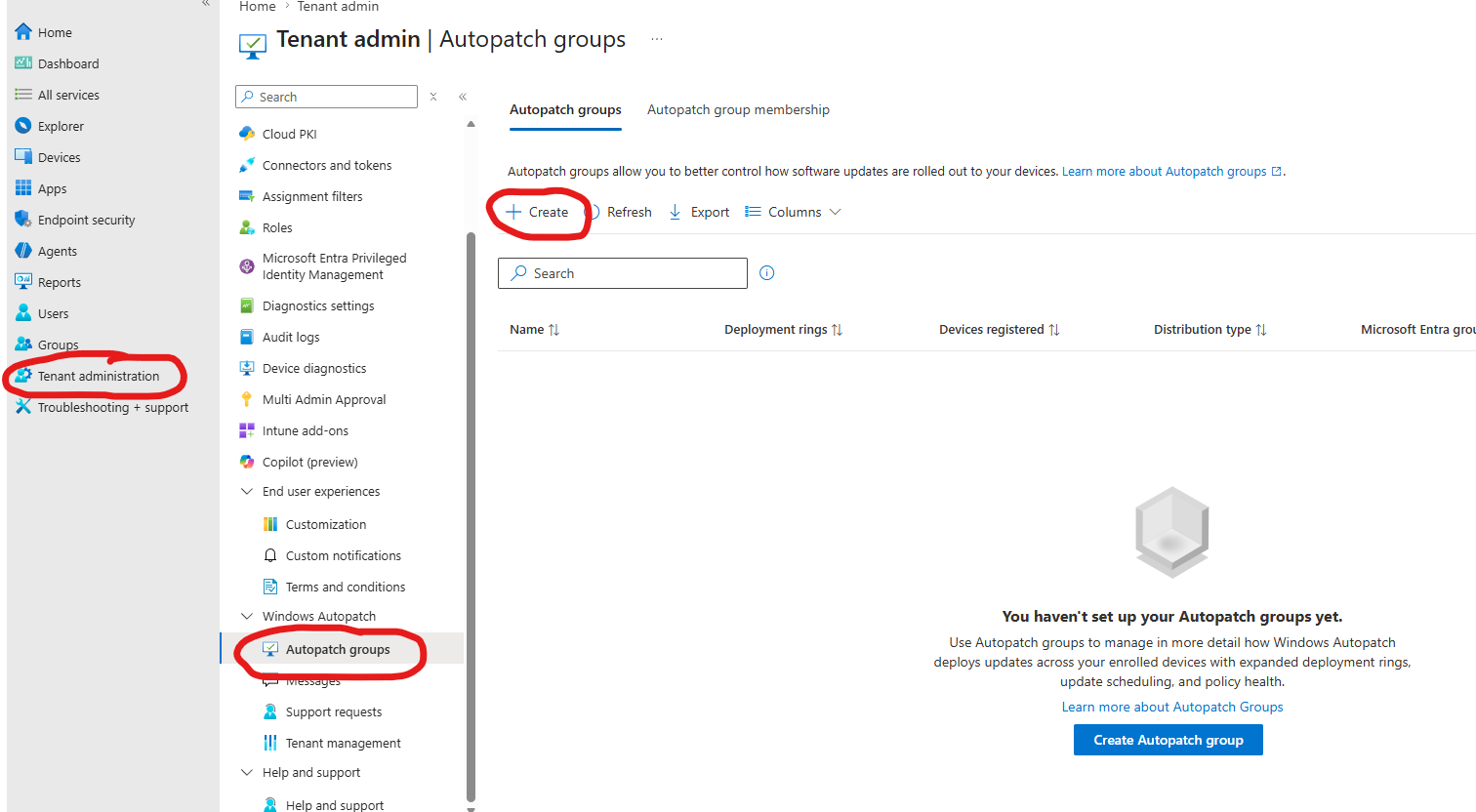
Navigate to Tenant Administration > Autopatch groups and click “Create” to start creating your autopatch group.
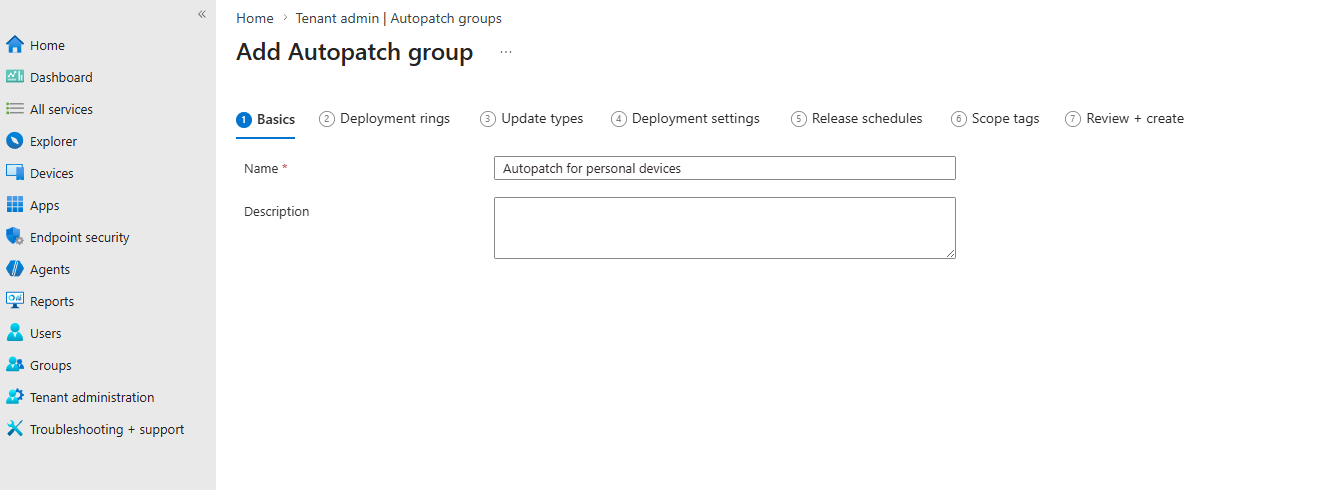
Give it a nice name and click Next.
The name you give your Autopatch group will be appended to all of the auto-generated policies and Entra groups.
Now for the important bits. First, add the Entra group that will onboard devices into your Autopatch setup. I recommend a dynamic group so you do not have to maintain it manually.
I recommend against using cloud-synced groups from SCCM collections where possible. Try to work within the parameters of Entra dynamic groups to keep your setup simple. SCCM cloud sync makes things unnecessarily complicated and slow.
Click “Add Deployment ring” for each ring you want. Five rings is a good starting point. Then adjust each ring percentage to control how many devices land in each ring. In my screenshot, the split is 5%, 15%, 20%, 30%, and 30%. That gives a balanced distribution in later rings while keeping enough volume early to catch noise sooner.
Once you are happy, click Next.
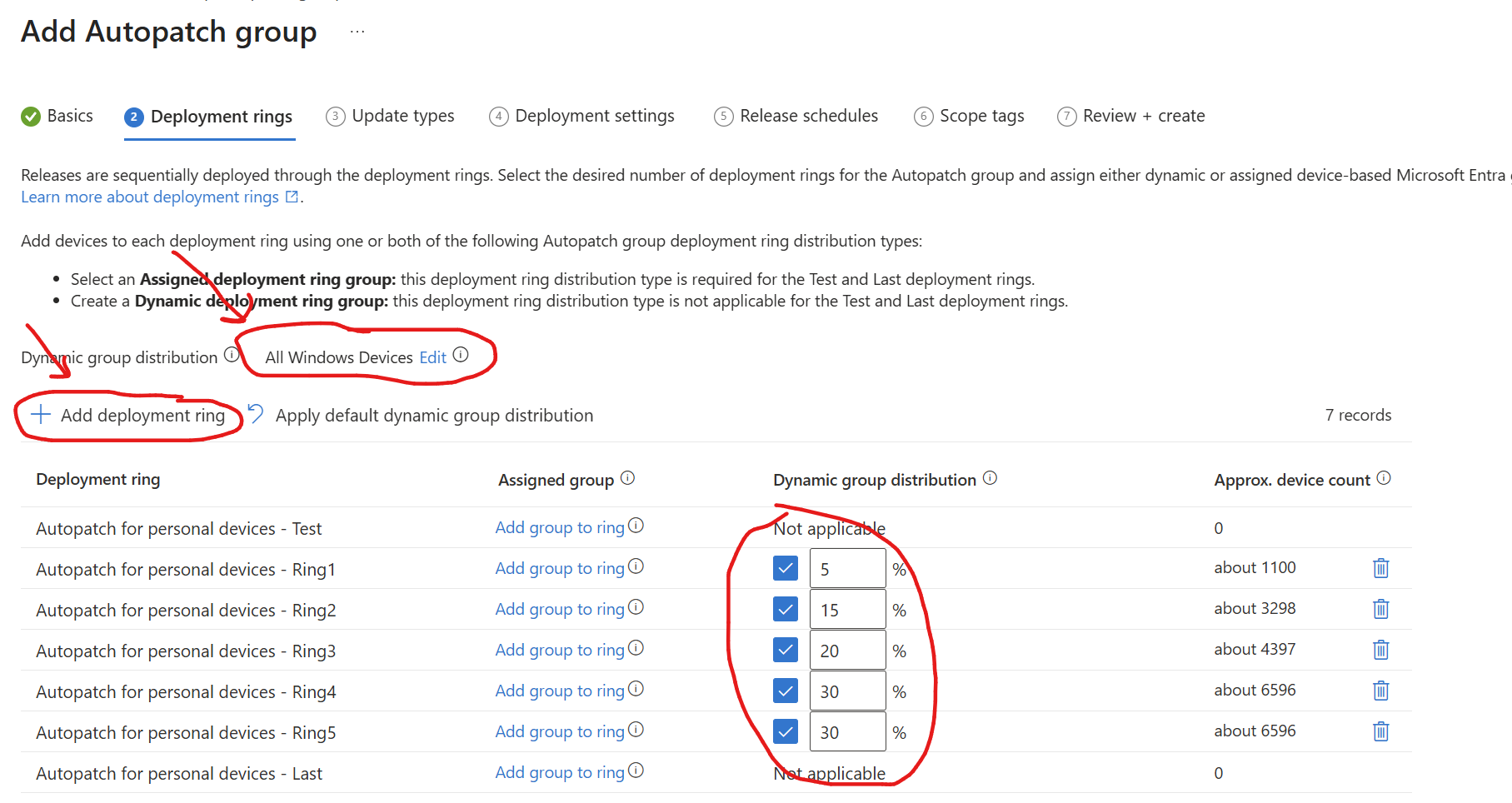
The Test and Last rings are not populated automatically. An IT admin must populate them manually through the “Autopatch group membership” blade in Intune. The Test ring is commonly used by device team personnel to validate changes before Ring 1. Ring Last can be used for devices that need a longer deadline or grace period before reboot enforcement.
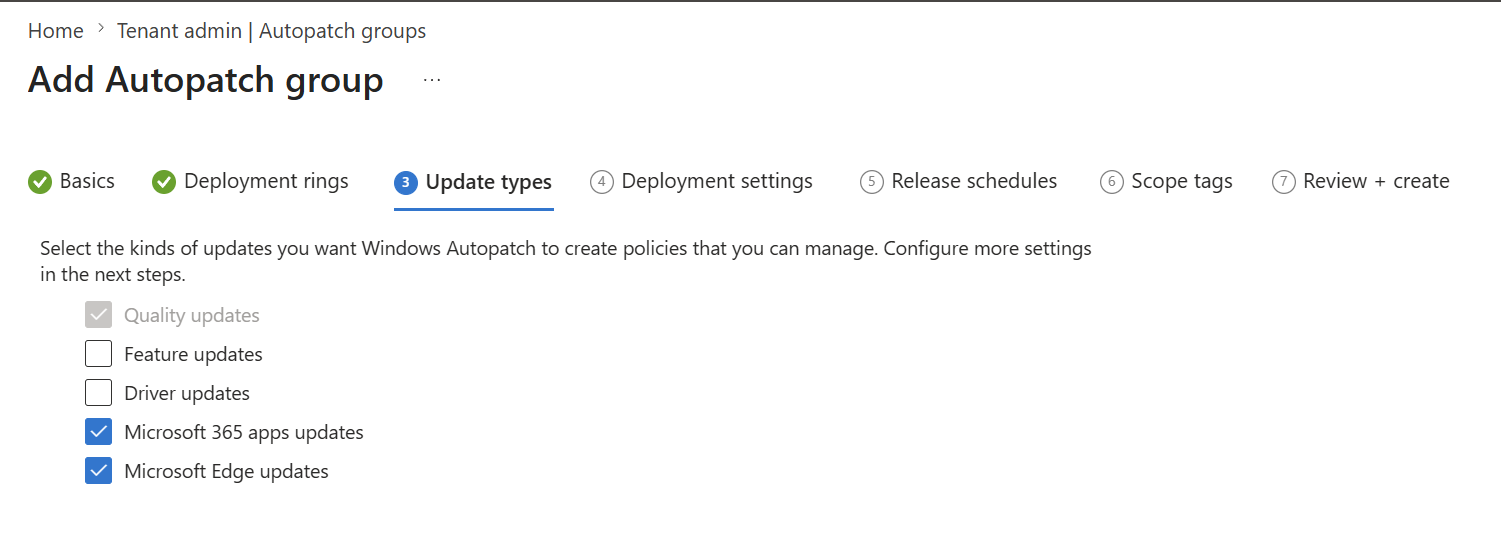
In the update types section, I recommend disabling feature updates. If you enable them here, Autopatch creates a “feature update anchor policy.” That is an “Immediate Start” policy for the selected version, which can force immediate updates on devices that are not already up-to-date based on the version you specify in the autopatch policy. To control feature updates properly, use the Autopatch multi-phase feature update rollout.
Also, do not select Driver Updates if you are already managing driver updates with the OEM’s own solution, i.e., Dell Command | Update, HPIA, or Lenovo System Update.
If you do decide to enable driver updates, keep in mind that Deadline and Grace Periods also apply to driver updates released via Autopatch, and is shared jointly with the quality updates.
Click Next again.
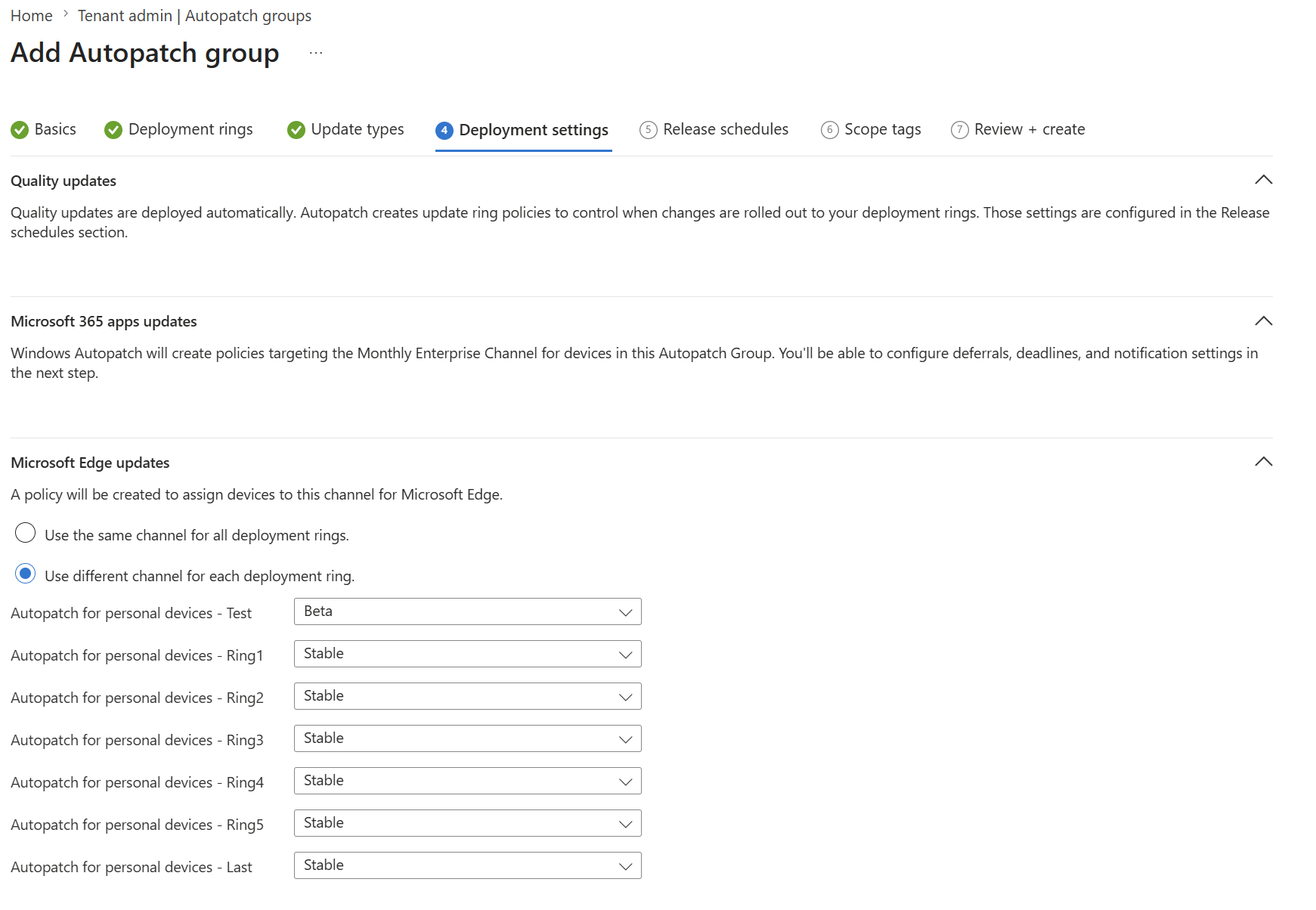
In the next blade, you can choose which rings get Edge Beta and Edge Stable. Edge Beta for Ring Test is the default. Just be prepared for occasional browser weirdness, since you will receive features before the masses.
Click Next again.
In the next section, you set timing for when quality updates are delivered to each ring. Before changing anything, make sure you understand these concepts:
| Setting | What it controls | Example |
|---|---|---|
| Client Deferrals | Number of days after a cumulative update release before it is offered to the device. | Set to 10: Autopatch waits 10 days before offering the update. |
| Deadline | Number of days before the update must be installed. | Set to 3: the device can wait up to 3 days before automatic install. |
| Grace | Minimum number of days after an update is installed and the device enters a pending-restart state before a restart is forced automatically. The countdown starts at pending restart, not at release — so a device that’s powered off (e.g. on vacation) only begins its grace countdown once it’s back online and the update has installed. Users receive increasingly prominent restart notifications during this window. | Set to 3: after the update installs and a restart is pending, the user has 3 days to reboot on their own terms before Windows forces it. |
Tuning these timers to your risk profile is extremely important. If you work in defense, security, or similar sectors, keep values as low as possible. Still leave enough room in later rings to absorb noise found early. Defaults are fine for many organizations, but if possible, lower deferral and raise grace. Many users reboot early anyway. That approach gives users flexibility while reducing exposure time. As always, there are trade-offs.
When you are done, click Next. Apply any scope tags if relevant, and then click Next and Finish.
Using Autopatch rings for your own benefit
Once set up, Autopatch starts registering devices from the Entra group you assigned. Almost immediately after creating the Autopatch group, you will see Entra groups for each ring.
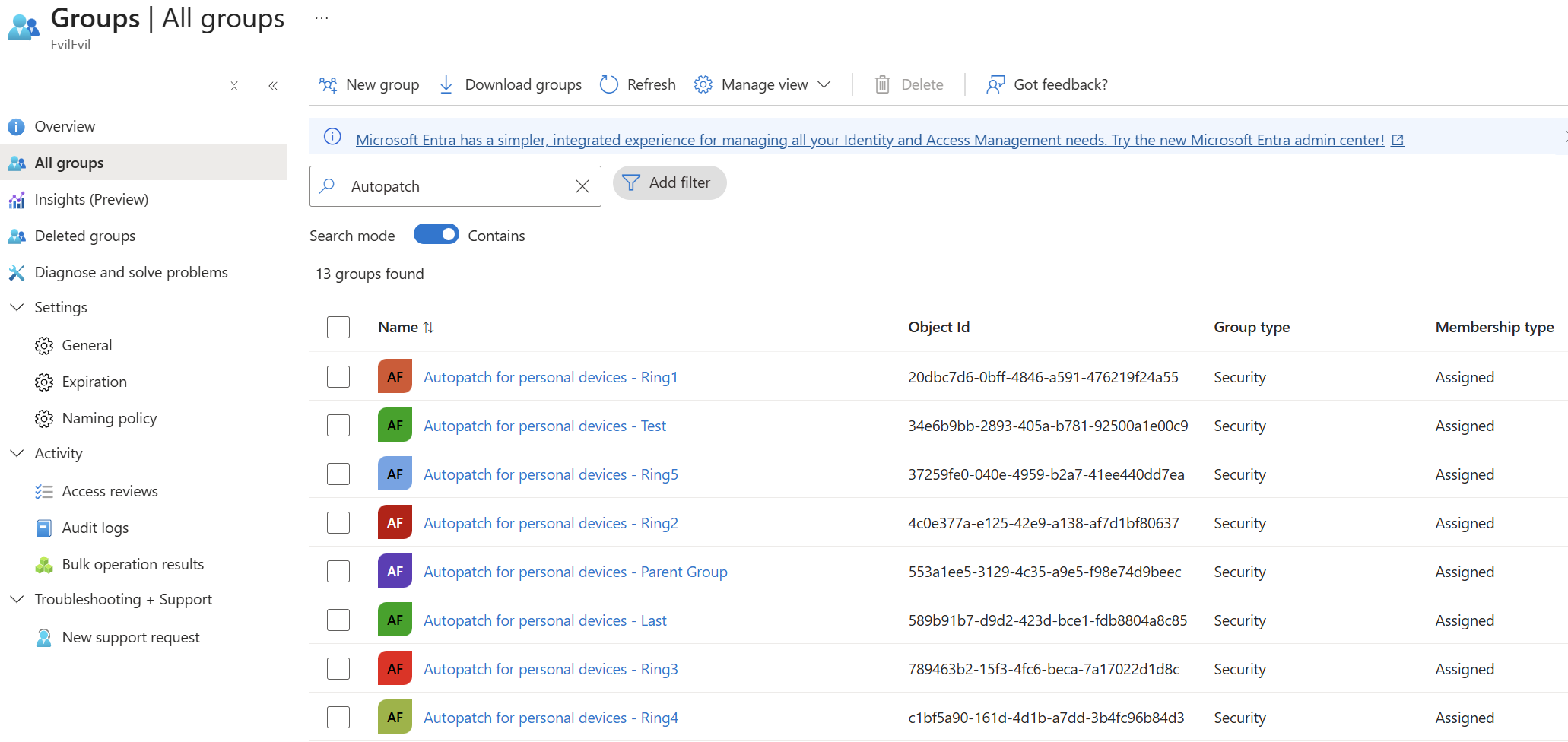
That is super valuable when you need to roll out a new policy, app, script, and so on. You can reuse those same rings for your own deployments.
If you create multiple Autopatch groups, they are consolidated under these groups: Modern Workplace Devices-Windows Autopatch-Test, Modern Workplace Devices-Windows Autopatch-First, Modern Workplace Devices-Windows Autopatch-Fast, and Modern Workplace Devices-Windows Autopatch-Broad. You can use these too, but the device split can be uneven between First and Fast.
Manually changing devices to different rings
Once devices start registering, Autopatch will distribute them dynamically based on the percentages you configured. If you want to move specific devices, for example into Ring Test, Fast, or any other ring, go to Tenant Administration > Autopatch Groups > Autopatch Group Memberships.
Search for the device, select it, click “Assign ring,” and choose the ring you want it in.
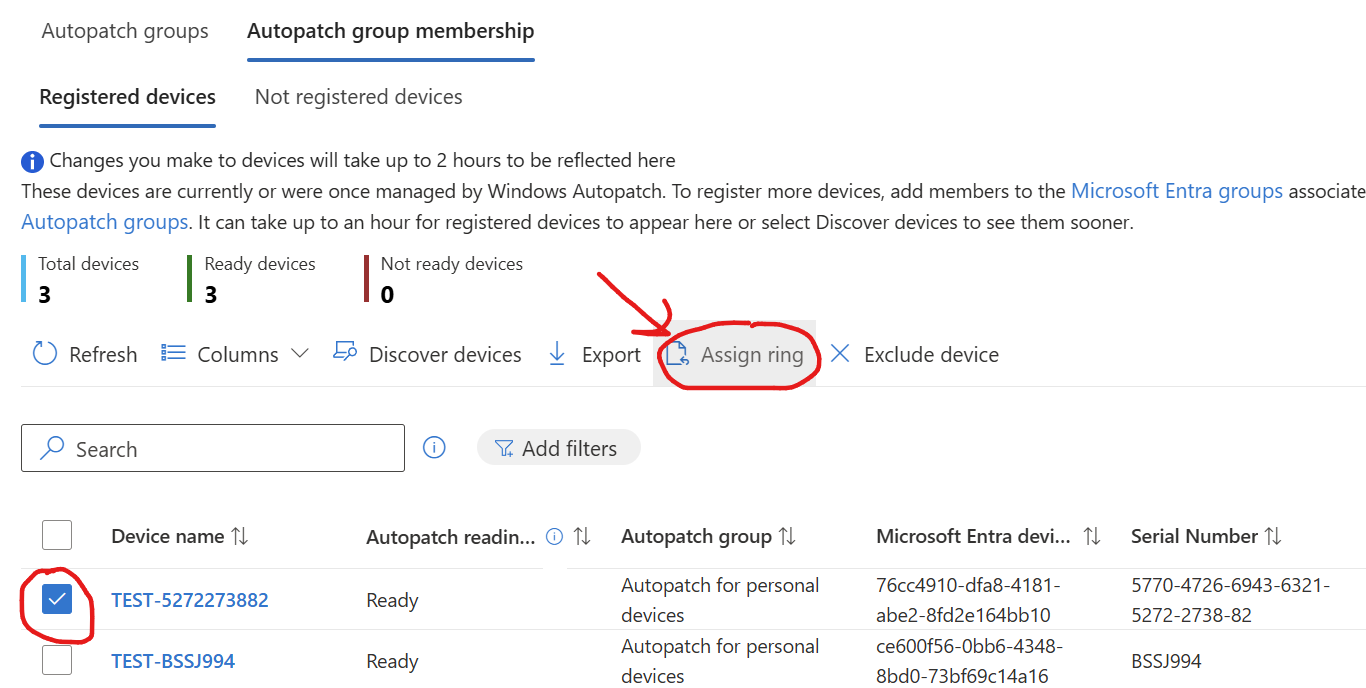
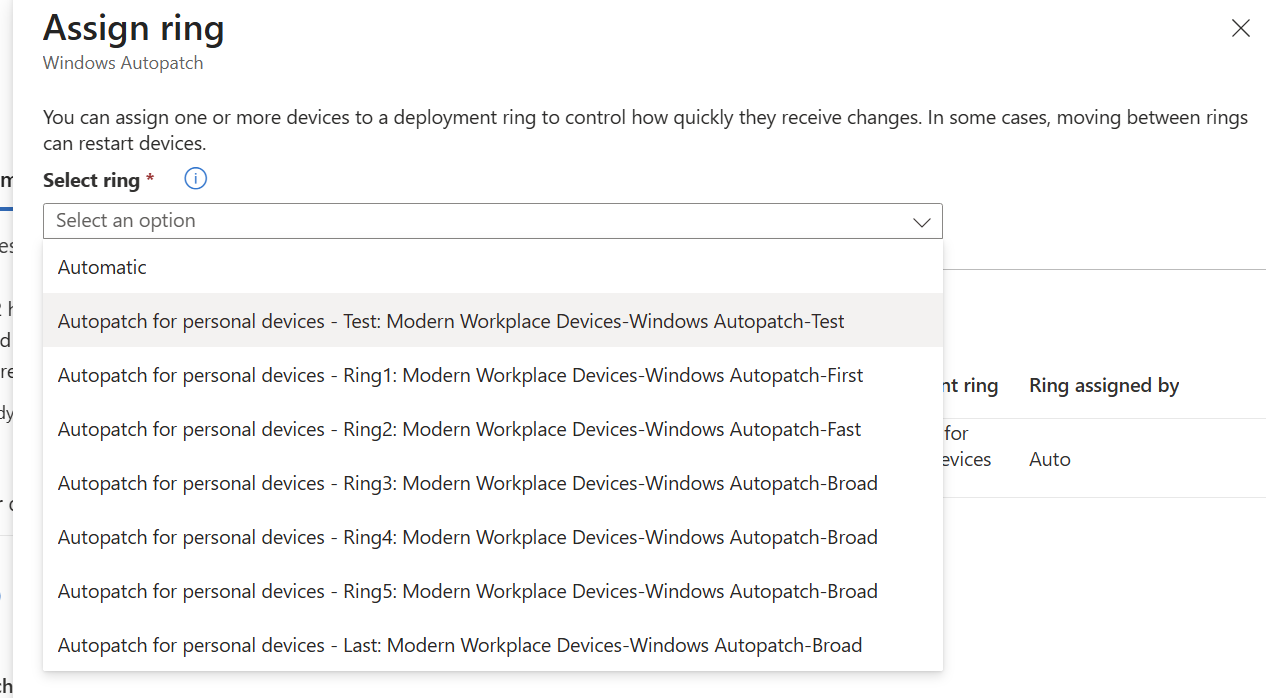
The Autopatch Group Memberships blade is also where you can exclude devices from Autopatch. You can also review “Not registered” devices, which shows devices that failed registration. Common reasons include unmet prerequisites such as “Windows update workload not swung over” or “Devices must be managed by Intune or Co-mgmt.”
The end
Remember to also build a multi-phase feature update rollout for your target version. It is straightforward and works well in phases.
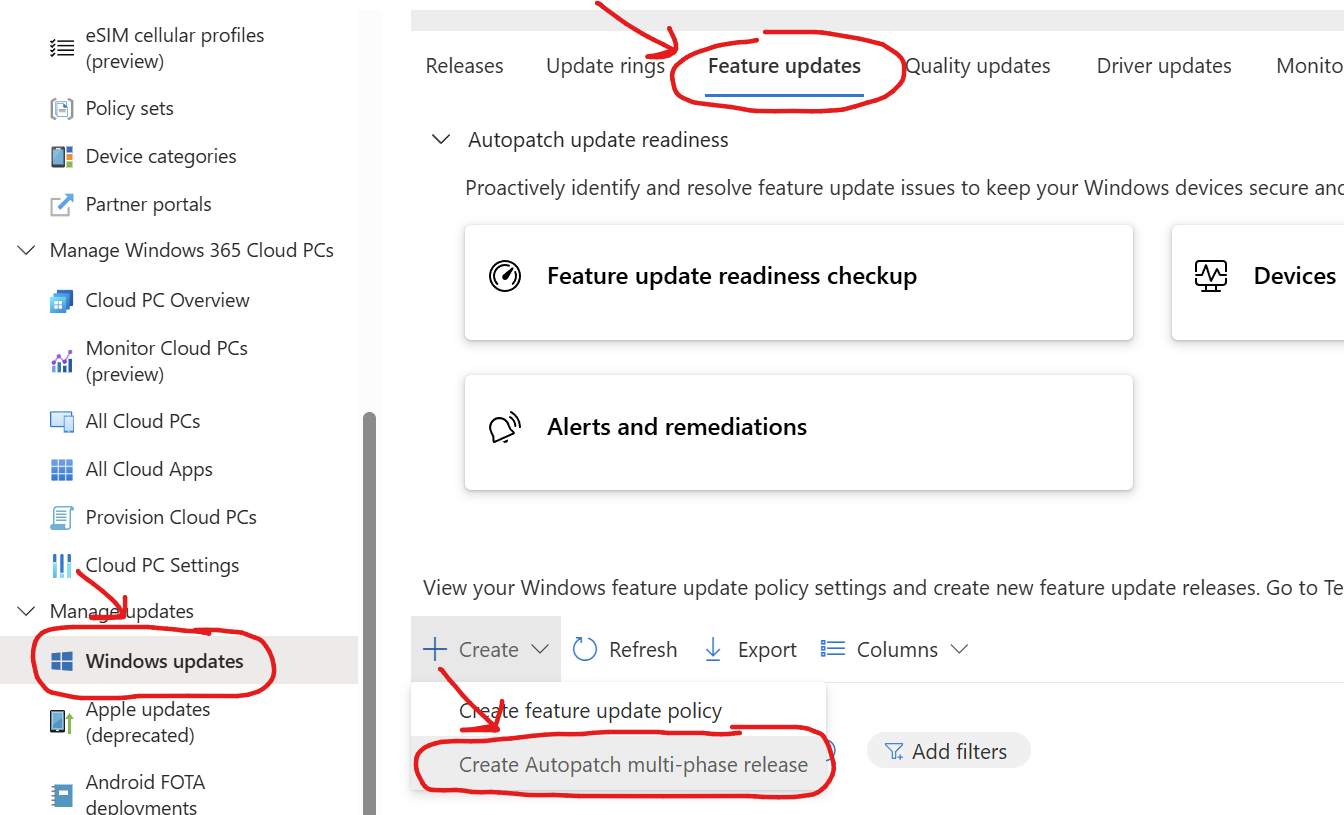
Final word of advice: factor in delivery timing when testing policies, apps, or other major changes against Autopatch rings. After Autopilot enrollment, a device may take 10-30 minutes to register with Autopatch, depending on your environment. So if you are testing something that normally lands during ESP, targeting Autopatch rings will not fully test the new-device deployment scenario.
That’s all for now. Hope you found it useful. Have an awesome day :)