
Whats up with the Secure Boot certificates expiring in 2026?
UPDATED 25th of February 2026: Microsoft hosted 2 AMA’s that gave us a lot more information about how all of this is going to work. You can find the link for for the December 2025 here and the February 2026 one here
If you manage Windows devices, you might have noticed some alerts about Secure Boot certificates expiring in 2026. This is a common concern, but there’s no need to panic. I’ve noticed some conflicting information about to manage this issue, hence this blog post to clear things up.

What you need to know
- The existing 2011-era certificates (KEK CA 2011, UEFI CA 2011, and Production PCA 2011) are expiring in mid‑2026, which would disrupt Secure Boot security.
- Failing to update the boot certificates could result in the following implications:
- Lose the ability to install Secure Boot security updates after June 2026.
- Not trust third-party software signed with new certificates after June 2026.
- Not receive security fixes for Windows Boot Manager by October 2026.
Deploying the updated Secure Boot certificates
You have several options for deploying the secure boot certificates. The most interesting options are the following:
Option 1 - Automatic rollout via High-confidence buckets
This is the most hands-off approach, but it also requires a bit of faith that your device has been placed into one of Microsoft’s “high-confidence buckets.” If it hasn’t, the device won’t automatically receive the updated Secure Boot certificates. But otherwise note that this option is turned on by default, and is one you have to opt-out of, if you don’t want to be part of the automatic rollout.
Microsoft describes this process as follows:
“Microsoft may automatically include high-confidence device groups in monthly updates based on diagnostic data shared to date, to benefit systems and organizations that cannot share diagnostic data. This step does not require diagnostic data to be enabled.” (Source)
Microsoft hosted an AMA the 10th of December 2025 where they clarified the following:
“A high-confidence device refers to one that Microsoft can reliably identify and update automatically through Windows Update without additional intervention. These devices typically meet criteria such as: Trusted diagnostic data signals confirming the device’s identity and compatibility, Secure Boot enabled and using supported UEFI firmware, Running a supported Windows version that can receive updates and No anomalies in the boot chain or firmware keys that could block the update process.”
There should be no harm in letting Microsoft update devices via this channel, but if you want to opt-out of this option for whatever reason, you can set a policy to opt out using Intune.
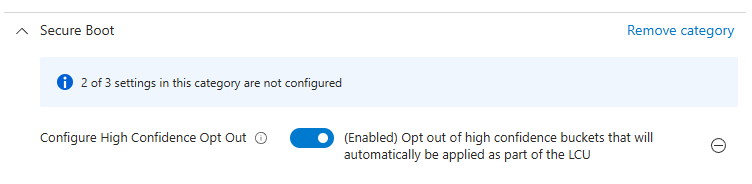
Option 2 - Automatic rollout via Microsoft Controlled Feature Rollout (CFR)
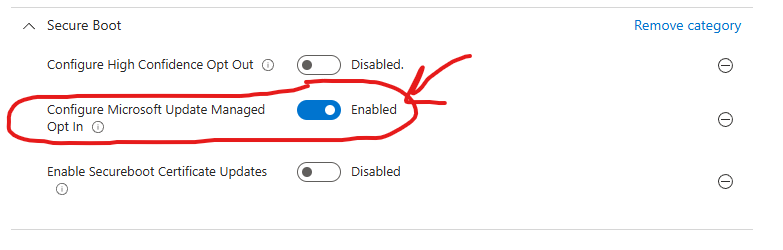
By deploying this policy you will participate in a Microsoft-managed rollout also known as Controlled-feature rollout (CFR). This rollout will be fully controlled by Microsoft, and usually CFRs involves a careful and staggered rollout approach based on certain criteria, grouping devices by hardware and firmware, monitoring feedback channels, and pausing if issues appear. In other words: With this option you are also completely in the hands of Microsoft with this one, but it differentiates slightly from the High-Confidence option. Expect the CFR-rollout option to be slower.
For this option to work you need to ensure you are sending required or optional diagnostic data to Microsoft. If you are already using WufB or Autopatch you probably already are doing it, but know that in March 2025 Autopatch revoked the policy they deploy by default to do this on your behalf (Ref: MC996580). If you want to be sure, you can craft your own policy and apply to devices in scope. Look for the “Allow Telemetry” setting in the settings catalog. Source
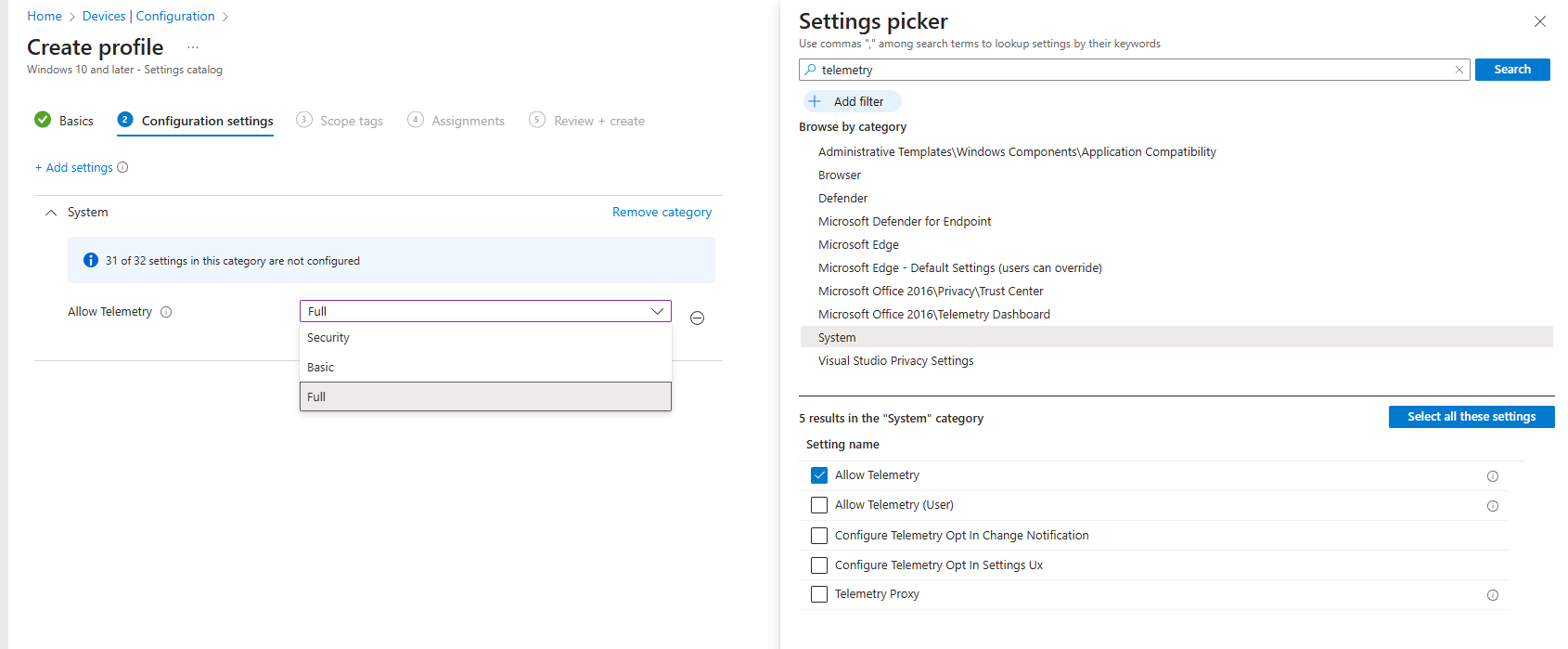
If you want to let Microsoft managed the rollout via the CFR process, search for “Secure Boot” in the settings catalog to find the relevant policies.
Option 3 - Self-managed rollout using Intune policies
If you want to manage the rollout of the secure boot certificates yourself, search for “Secure Boot” in the settings catalog to find the relevant policies.
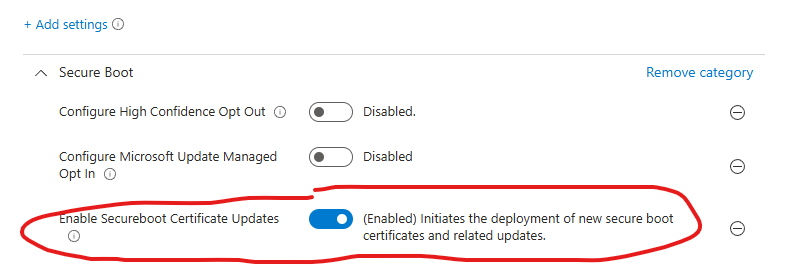
This option can be highly desirable if you want to be in complete control yourself, as this allows you to roll this policy out in your own rings/waves. This option also doesn’t require for you to send diagnostic data to Microsoft.
NOTE: There is a known issue where this policy can fail with an error code 65000 - It is due to be fixed by February 27 2026 (Source). In the meantime, you can apply the corresponding registry key instead, using a PowerShell script. You can download it from my github here
Monitoring for updated certificates
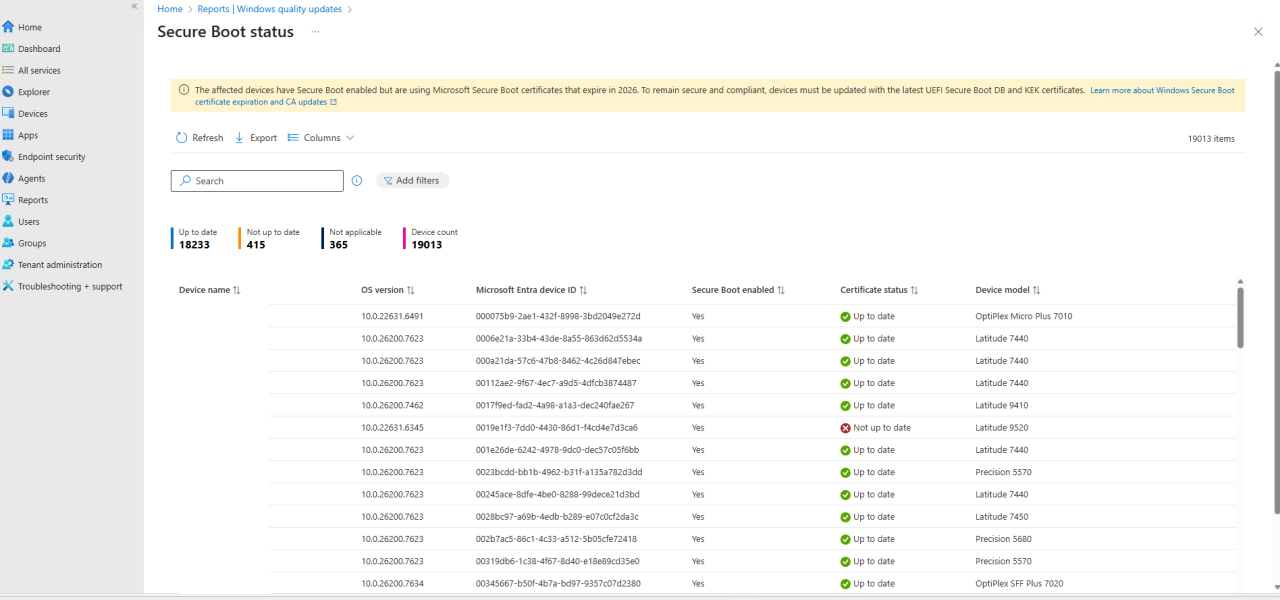
Microsoft released a new report in Intune to monitor for the updated certificates. You can find it by navigating to the following blade: Reports > Windows Quality Updates > Reports > Secure Boot Status
Wrapping up
Microsoft is already working with OEM’s to push out BIOS Updates, where the updated certificates are present. So if you are already keeping your BIOS Up-to-date in your org, chances are, you already received the updated certificates. You can find articles from Dell and HP about how they are adressing things from their end. They are already updating the certificates from their end via BIOS Updates on newer models.
If your devices are in an air-gapped environment or with limited network connectivity, you will have to update these certificates manually. See this article for more information.
The full Microsoft guidance is available in this article
Plenty of scripts online suggest you need to handle this certificate update yourself. For most organizations, that’s not the case. Microsoft will take care of it or you can choose to take matters into your own hands with new easy-to-deploy intune policies. If you’re running hardware from major OEMs like Dell, HP, or Lenovo and keeping them updated, you’re likely already covered to a certain extent. Also, this is issue is also present on servers, so make sure to prepare accordingly for your servers as well.
Hopefully this clears up the confusion and saves you from chasing unnecessary “DIY fixes.”.
Thanks for reading — and have an awesome day :)