
Multi-Admin Approval in Intune: What It Does (and Doesn’t) Protect Against
Recently there was a major hack: the Stryker incident. You can read more about it here.
The TL;DR version:
- Mass-wipe commands were sent using Microsoft Intune to all Windows-based devices
- Servers were also impacted - But not using Intune
- In total, around 200,000 devices, including servers, laptops, desktops and mobile devices were affected
A compromised admin account (presumably a Global Admin, but we don’t know yet) was the culprit. Over the past several years, there’s been a strong push for reducing the amount of Global Admins, Conditional access policies and phish-resistant MFA for these accounts. Hell, phish-resistant MFA should be implemented for everyone, but Global Admins should definitely be the first in line.
One thing I noticed during the week the incident unfolded, was a seemingly knee-jerk reaction to enable MAA because that would prevent incidents like these. But would it? Let’s find out.
Multi-Admin Approval overview
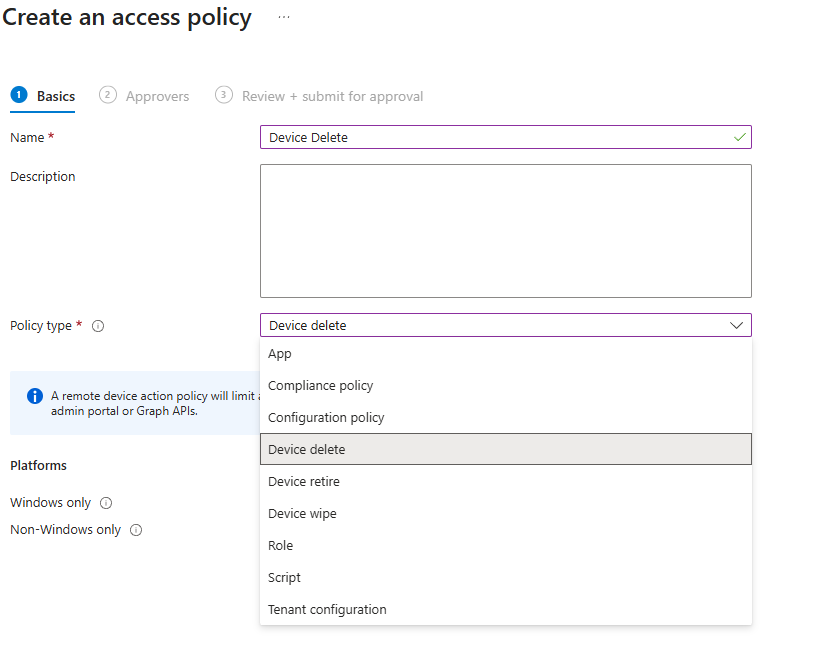
Multi-Admin Approval (MAA) is a relatively new feature from Microsoft Intune that adds an extra approval layer for high-impact actions such as Device Wipe and Device Delete. Microsoft is also adding more device actions and policy types, for now it supports a few different policy types, such as modifying applications, running scripts or modifying a role. But the majority will probably look at enabling MAA for the following device actions: Delete, Retire and Wipe
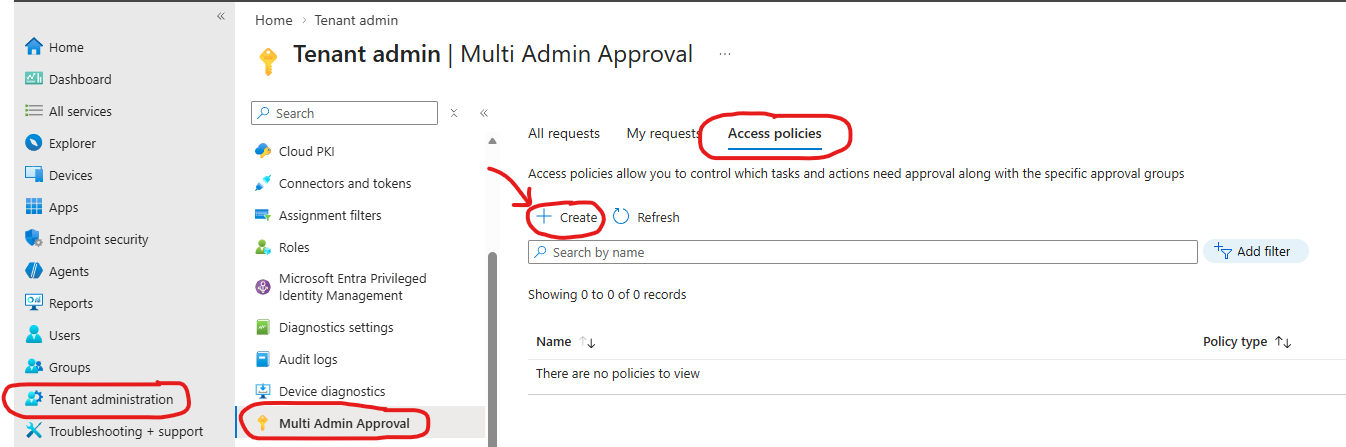
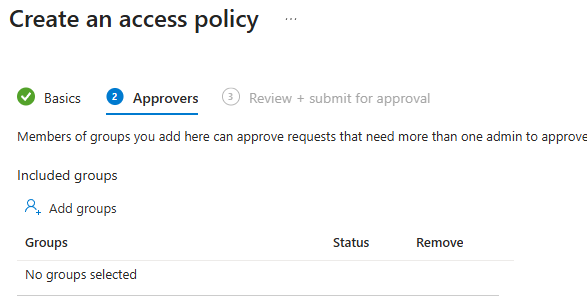
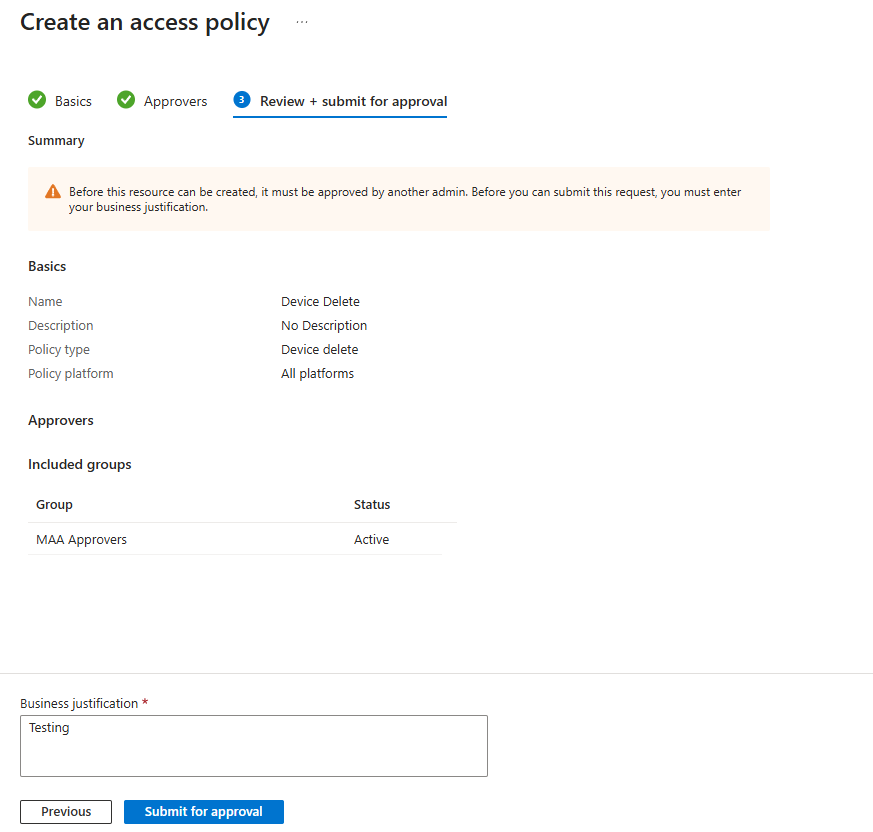
When you create any of these MAA policy types, it is a tenant-wide policy. Scope tags are not supported, and scoping a MAA-Policy only to certain devices or users is also not supported for now. When you create the MAA policy, you will need to assign an EntraID Group of who can approve requests and then it will need to be approved by another admin before the policy actually is in effect. Note that even Global Admins cannot approve their own MAA requests. Once the request is approved by another admin, you will have to navigate back to the MAA Pane in INtune and finally click “Complete request”. The approach is the same for the other MAA actions, let’s break it down.
How it works in practice
Let’s run through a scenario where an admin wants to delete a device. In this example we will have 2 admins. Admin 1 is Bob and Admin 2 is Rachel.
1) Bob initiates a device wipe towards a device from Intune. Since there is an MAA-Policy deployed, it will need to be approved by a 2nd admin, and Bob will need to provide a justification included in the request. 2) Rachel approves the request from the MAA Requests pane in Intune. Rachel also needs to provide an approval reason. 3) Bob then has to go to the same Multi-Admin Approval pane, click his request, and finally hit the “Complete request” button to actually initiate that wipe. Bob will have to do this within 30 days after the approval was given, otherwise it will expire. If the action expires before clicking “complete request”, Bob will have to initiate a new wipe request and get it approved again.
It’s important to underline that the action doesn’t automatically complete once it’s approved, the requesting admin will have to go to click that “Complete request” button to finalize the action, so essentially a 3-step process. There is also no built-in notification system, so admins are not currently notified in any way when an approval request is sent to the portal or when a request is approved. It is possible to create your own notification tooling, e.g., Power Automate or an Azure Logic App to send notifications via email or to a Teams channel.
NOTE: Based on learnings from the field, I’ve found it can take between 15-30 minutes for MAA to actually process the request. Example: If you press “complete request” to delete or wipe a device, it doesn’t immediately process. NOTE 2: Once a request has been marked as “Approved”, it seems they will expire after 3 days. Not sure if this is a bug of if it’s intended. Will investigate this.
What it protects against
I want to be clear: this does NOT protect against a compromised Global Administrator (GA) account. In various posts I found on LinkedIn and Reddit, it was frequently misconstrued that by simply implementing MAA, you were protected against these mass-wipe attacks, but this is not the case if the compromised account is a GA. When you obtain GA you have full administrative rights in the tenant. The GA will be able to simply delete the MAA policy or create separate admin accounts to approve their own MAA requests. Alternatively, an overprivileged app registration can also tamper with these settings, which is an additional blind spot that many companies are unaware of.
However, and to be clear, MAA does protect against the following:
- Accidental device wipe/deletion
- The disgruntled employee scenario: On their last day at work, the individual could initiate mass-wipes before heading out the door.
- Singular compromised Intune Administrator or similar (Think Custom RBAC Roles in Intune)
A few gotchas
- MAA does not protect against a Compromised GA Account
- If you are using 3rd party or custom-written tools to process intune device deletions or wipes, they will stop working after implementing an MAA policy, e.g., a custom-written PowerShell script or tools like IntuneOffboarding. When deleting devices using a script, you need to put a justification for the deletion request in the header when using Remove-MgDeviceManagementManagedDevice or use one of the new Graph cmdlets for managing approval requests (source)
- Before just blindly implementing MAA, I would strongly recommend reviewing your processes for using actions like wipe and delete. They tie heavily into the device lifecycle process. It can heavily impact the daily operations in an IT ServiceDesk or an IT team that is managing devices in a multi-region company.
- Currently there is no option to assign an MAA Policy to a given set of devices or limit to specific scope tags or groups, it’s an all or nothing switch. If you decide to enable MAA in your tenant, be sure to communicate to all stakeholders in advance.
- Processing an action like Delete or Wipe is not immediate
- If using Custom-RBAC Roles with Groups via PIM, sometimes the MAA pane doesn’t show all devices - This can confuse support personnel. As a rule of thumb, wait 15 minutes after activating the group-based PIM role, and then reopen the Intune tab, to avoid this problem.
Rounding off
There are definitely pros and cons for using MAA, and it needs to be well thought out before just blindly enabling it, since it can heavily affect your device lifecycle process, whilst there is also no option to scope an MAA Policy to just a group of test devices or test users, so it’s an all or nothing switch. MAA in its current shape and form, as of this date, is extremely rigid. It’s still very early days, and I’m sure Microsoft will give it some love.
That’s all for now, I hope you found it useful.