
Use Intune and Company Portal to Install Windows OS Patches
This suddenly came up out of the blue: installing or offering Windows updates manually via Intune and the Company Portal.
I’ve previously done this for customers to patch stubborn devices—for example, when Windows Update is broken or misbehaving. In those scenarios, having a Windows update available through Company Portal can be very useful for troubleshooting purposes.
In this case, however, this blog post was prompted by the January 2026-01 Out-of-Band (OOB) patch released for Windows 11 by Microsoft. Microsoft decided not to release this update through the normal Windows Update channels, meaning it is not offered via Windows Update for Business (WUfB). This OOB patch contains fixes that may significantly impact users—or even you as an IT admin.
Update 24th of January 2026: The OOB Patch has now been added so you can expedite it via Intune - No reasons to manually package it, but at least now you know how to manually add a patch to company portal :)
What’s in the January 2026-01 OOB patch?
For Windows 11 23H2, the January 2026-01 OOB patch
(KB5077797)
contains the following fixes:
-
[Remote Desktop] Fixed:
Some users experienced sign-in failures during Remote Desktop connections. This issue affected authentication steps for different Remote Desktop applications on Windows, such as the Windows App. -
[Power & Battery] Fixed:
Some devices with Secure Launch enabled restarted instead of shutting down or entering hibernation.
For Windows 11 24H2 and 25H2, only the Remote Desktop issue appears to be relevant; the shutdown issue does not apply. If your users suddenly experience generic authentication errors when connecting to AVD or Windows 365, there’s a good chance this January 2026-01 update is the cause.
How do we offer this patch via Intune?
Short answer: not via WUfB.
We need to package and deploy it manually 🙂
This is because Microsoft did not release it via WufB, only via Microsoft Update catalog.
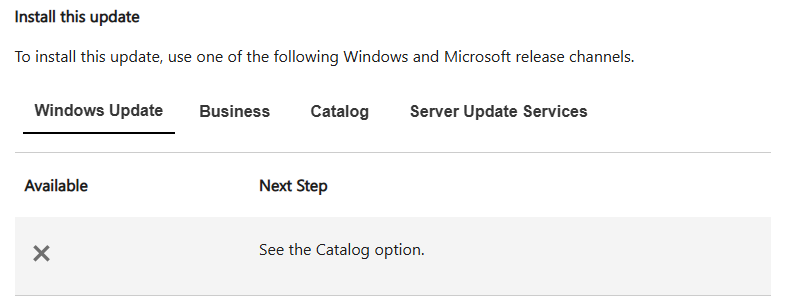
Packaging and offering the update in Company Portal
It is technically possible to wrap updates for Windows 11 23H2, 24H2, and 25H2 into a single package. However, I don’t recommend this due to the size of the updates.
Instead, we’ll create one Win32 app per Windows 11 version, where applicable. We’ll use requirement rules to ensure the update is only offered to relevant devices. Using a Win32 app also ensures we can take advantage of
Delivery Optimization, provided it’s setup and correctly configured of course.
In the example below, we’ll download the update for Windows 11 23H2, create a PowerShell script to install it, package it, and make it available in Company Portal for our end-users.
Step-by-step
-
Go to the Microsoft Update Catalog and search for the KB number of the patch you want.
-
Click Download and download all relevant files for the update. In the below example we are going with the January 2026-01 OOB Patch for Windows 11 23H2 x64

-
Create a PowerShell script to install the update and add the following line (Remember to adjust the name of the .msu file):
Add-WindowsPackage -Online -PackagePath "$PsScriptRoot\windows11.0-kb5077797-x64_af2b9a9ab390d2081e3e4eb52a2f8b81b5be1d7f.msu" -
Wrap the files using the
Intune Content Prep Tool
and generate an.intunewinfile. -
Upload the
.intunewinfile to Intune as a Win32 app and give it a clear, descriptive name.
In this example, we’re offering the Windows 11 23H2 January 2026-01 OOB update to Windows 11 23H2 devices.
Win32 app configuration
Install and uninstall command
Install command
PowerShell.exe -ExecutionPolicy Bypass -NoProfile -File Install-WindowsUpdate-23H2_2026-01-OOB.ps1
Uninstall command
dism /online /remove-package /PackageName:Package_for_RollupFix~31bf3856ad364e35~amd64~~22631.6494.1.2
It’s otherwise always nice with a logo :) You can find a nice Microsoft logo or you can use the one I’ve stored here

Note:
To find the correct uninstall package name for a specific update, use the following PowerShell command to list installed updates:Get-WindowsPackage -Online | Where {$_.PackageName -like '*RollupFix*'}
Requirement rule
Use a registry requirement rule to ensure the app is only offered to relevant devices. You can also optionally add a disk space check (2000mb) before offering the update. This will make it easier for debugging purposes, in case of disk space issues, as it will clearly be listed in the intune portal if the disk space check has not passed.
Rule configuration:
- Key path:
HKEY_LOCAL_MACHINE\SOFTWARE\Microsoft\Windows NT\CurrentVersion - Value name:
CurrentBuild - Requirement type:
String comparison - Operator:
Equals - Value:
22631
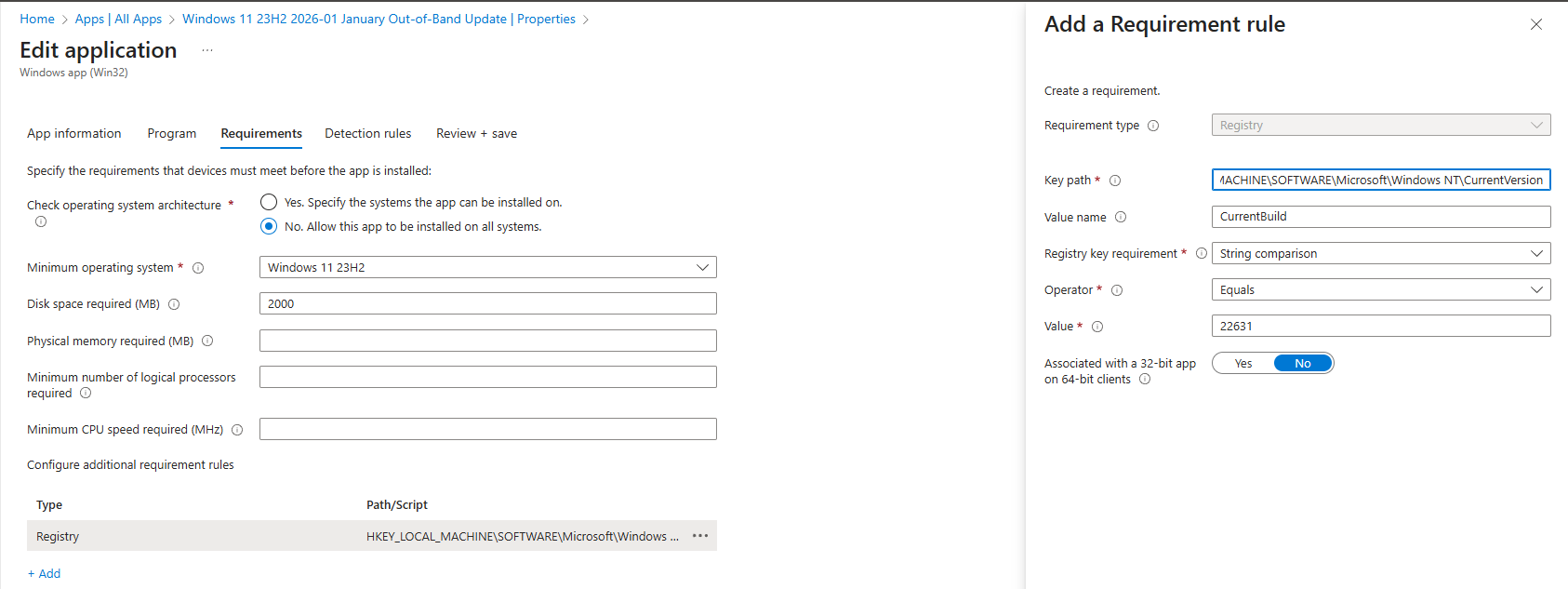
Notes:
- Windows 11 24H2 →
26100- Windows 11 25H2 →
26200
Detection rule
Use a registry detection rule to confirm the update is installed.
Rule configuration:
- Key path:
HKEY_LOCAL_MACHINE\SOFTWARE\Microsoft\Windows NT\CurrentVersion - Value name:
UBR - Detection method:
Integer comparison - Operator:
Greater than or equal to - Value:
6494
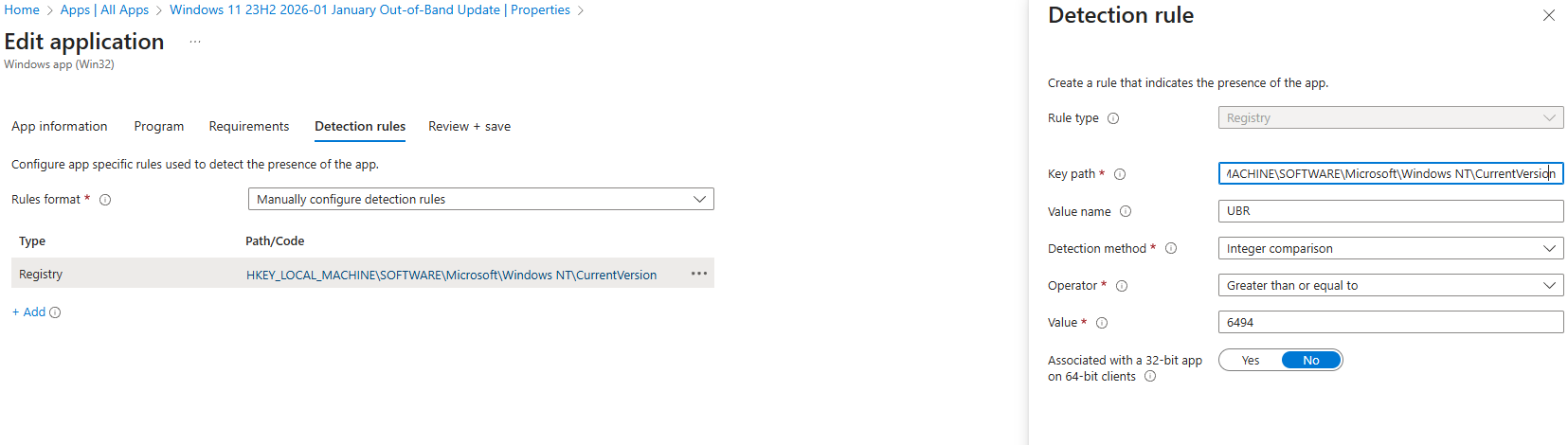
Notes:
- Windows 11 24H2 and 25H2 → use value
7627
Reboot behavior
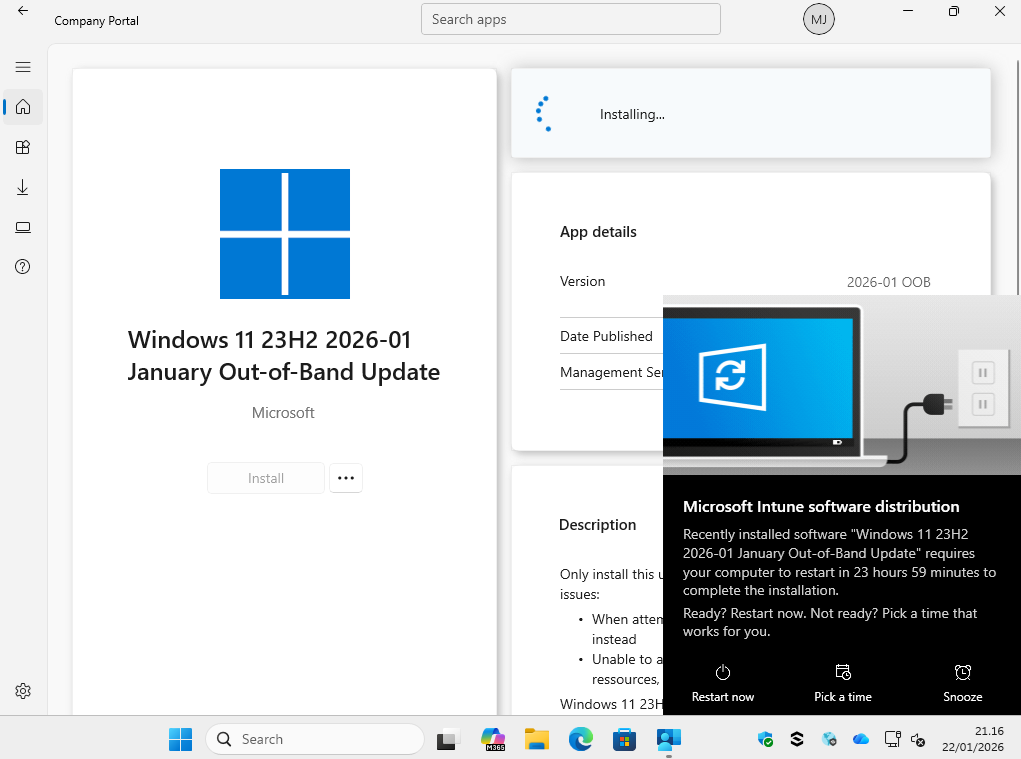
Make sure to carefully configure and observe the reboot behavior.
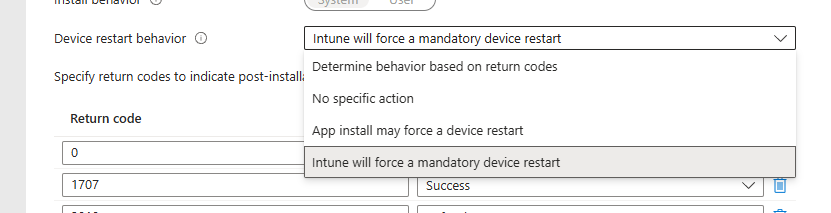
If you want to nudge users to reboot after installing the update, enable the following option on the Win32 app:
- “Intune will force a mandatory reboot”
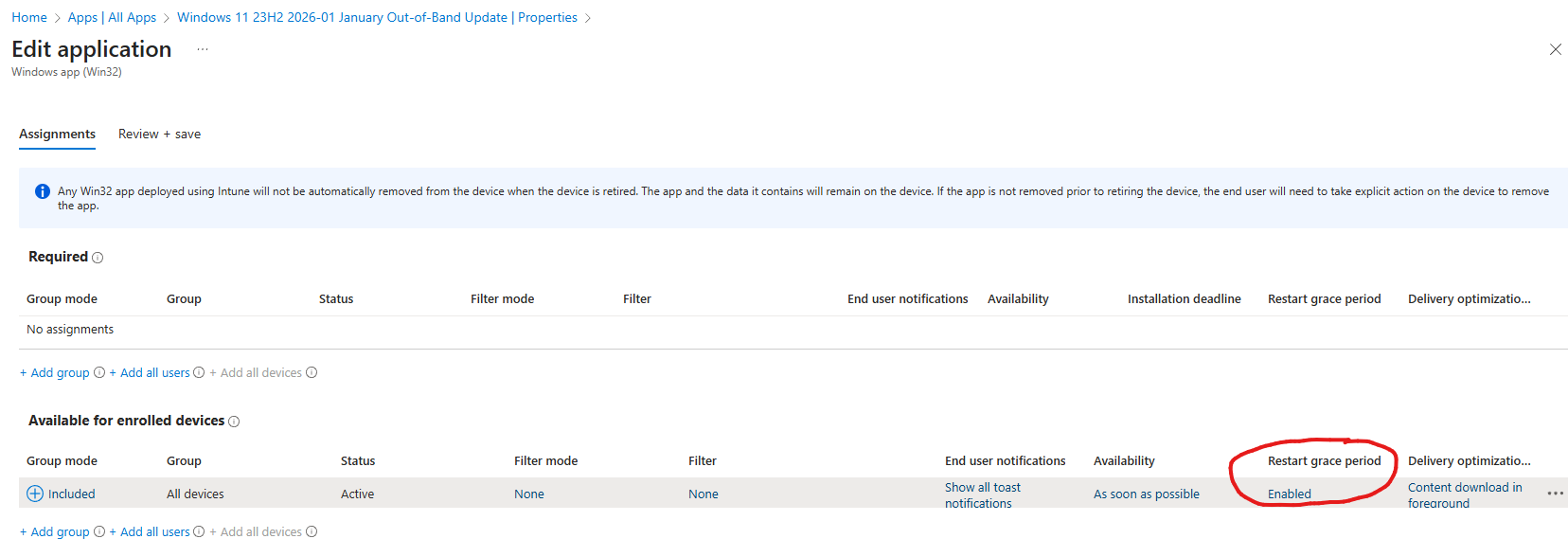
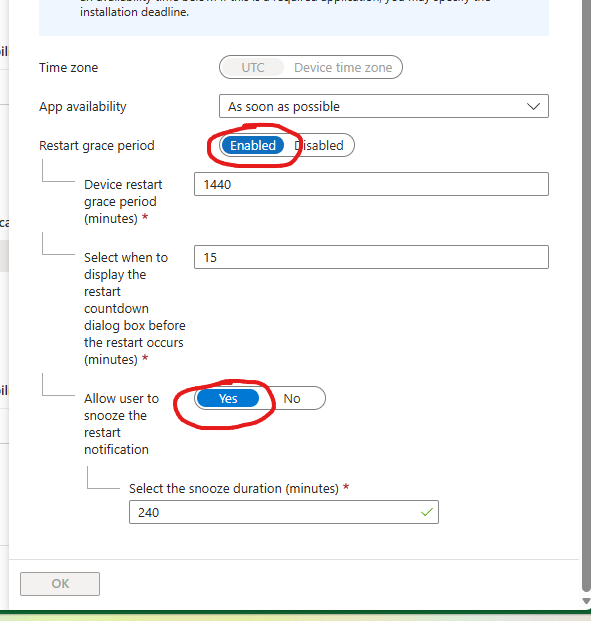
Enabling this option unlocks the Restart Grace Period settings on your app assignments. This allows you to notify users and give them multiple reminders before the reboot is enforced.
Important:
Always enable the Restart Grace Period when using
“Intune will force a mandatory reboot”.If the grace period is not configured, installing the update will result in an immediate and abrupt reboot, which is a very poor user experience.
User Experience
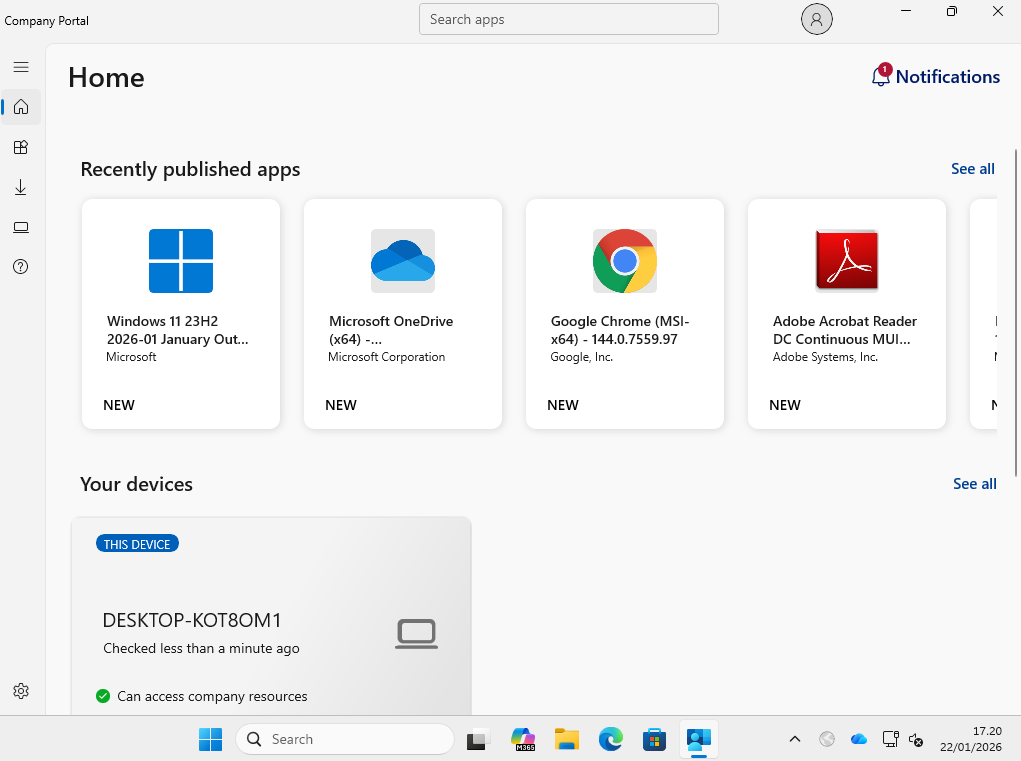
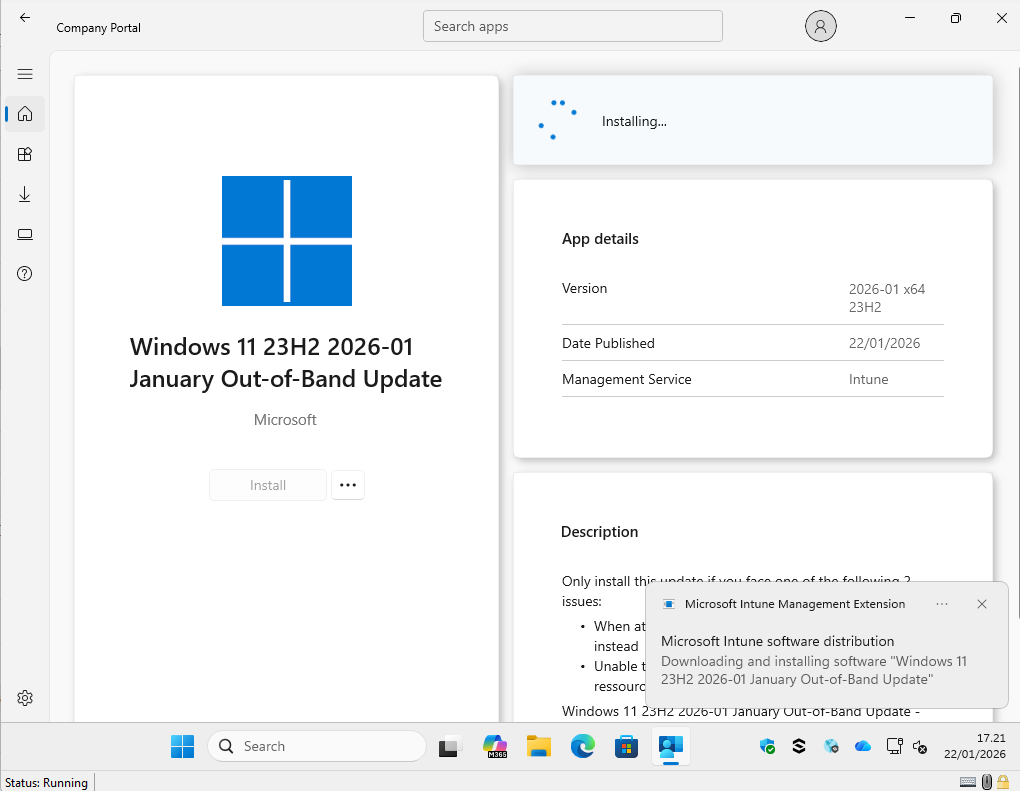
The user can enter company portal and install the app. After installing the app, they will be prompted to reboot, as shown below:
Wrapping up
It’s far from ideal to have to offer updates this way, but I’ve received a large number of questions and concerns from customers regarding this January 2026 update. That’s why I felt compelled to write this post and demonstrate a practical approach for manually packaging and offering the update to end users.
By using a Win32 app and making it available in Company Portal, you can treat this update as a fix-on-failure—guiding users to install it only when needed. Of course, you can also push it proactively to all users if many are affected, but in that case, I strongly recommend increasing the restart grace period so users have more than 24 hours to complete the mandatory reboot.
That’s all for now.
Have a great day ahead 🙂